
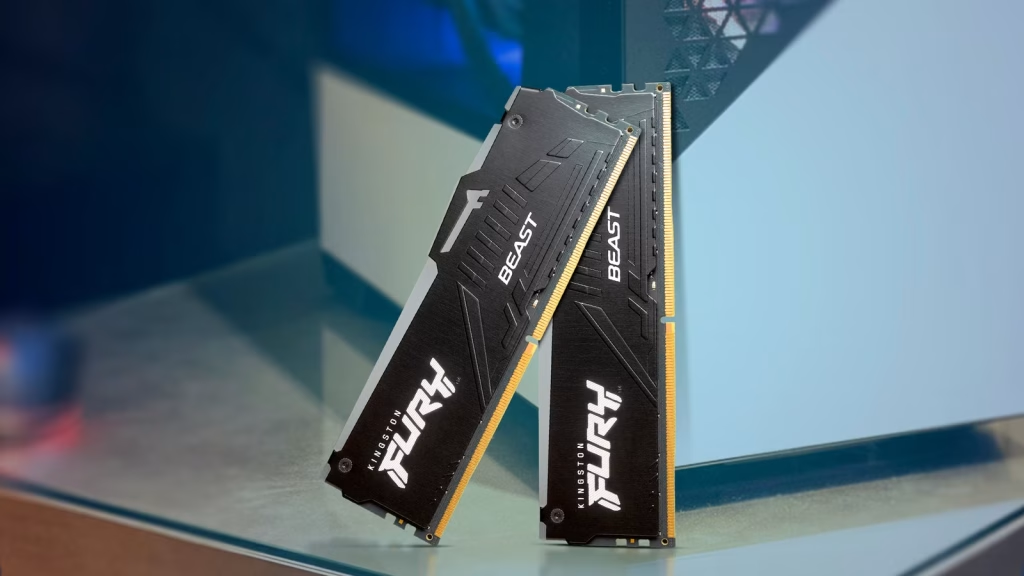
If your Windows PC ever feels sluggish when moving large files or processing temporary data, there’s an advanced trick you might not have heard of: use part of your RAM as a super-fast storage drive. In Windows this is often represented by the special drive letter X: — a RAM-backed virtual drive that delivers blazing-fast performance compared with regular storage.
In simple terms, your computer’s RAM (Random Access Memory) is temporary memory that the system uses to work on active tasks. Unlike traditional storage devices — such as HDDs or SSDs — RAM operates at dramatically higher speeds, making it ideal for fast read/write tasks.
⚡ What Is Drive X in Windows?
In Windows, the drive letter X: is commonly used to represent a RAM drive — a virtual hard drive that lives entirely in system memory. When you allocate part of your RAM as a RAM drive, it will appear in File Explorer like any other drive, but with read/write speeds far beyond conventional SSDs or HDDs.
This type of setup is temporary and volatile: data stored on the RAM drive disappears when the system is shut down or restarted, because RAM cannot hold data without power. That’s why RAM drives are best suited for temporary files and fast cache operations, not long-term storage.
🚀 Why Use a RAM Drive (Drive X)?
Here are the main reasons users might want to enable a RAM drive on their Windows machine:
✔️ Extreme Speed for Temporary Storage
Since RAM is much faster than even the best SSDs, placing temporary files (like caches or scratch data) on a RAM drive can drastically reduce read/write times. This is especially useful for tasks involving large data pools or frequent access.
✔️ Better Performance for Specific Workloads
Applications that handle large temporary files (like video editing, massive spreadsheets, compilers, or cache-heavy software) can benefit from having a dedicated high-speed area in memory.
✔️ Reduced Wear on Physical Storage
By moving heavy temporary operations to RAM, you reduce the number of writes to SSDs — which can extend the lifespan of solid-state drives.
🛠 How RAM Drives Work in Windows
To create a RAM drive, you usually use a third-party utility such as ImDisk Toolkit or RAMDisk. These tools let you allocate a portion of the system’s RAM to act as a virtual disk, choose a drive letter (such as X:), and even configure whether the drive should load automatically with Windows.
Once set up:
- The RAM drive shows up like a normal drive in File Explorer.
- You can use it for temporary files or specific applications.
- The contents are lost when you shut down or restart, unless your RAM-disk utility supports saving and restoring the image on shutdown/startup.
⚠️ Things to Consider Before Using a RAM Drive
While the performance advantages are real, there are some important considerations:
📌 RAM Sacrifice
The memory you allocate for the RAM drive isn’t available for running applications. If you dedicate too much, your system might slow down overall because there’s less RAM left for normal processes.
📌 Volatile Data
Data on a RAM drive disappears when the PC powers off. This makes it unsuitable for storing important long-term files unless you use software that writes the contents back to disk when shutting down.
📌 Limited Capacity
A RAM drive is limited by how much memory you have. If your PC only has 8 GB of RAM, you can only dedicate a small fraction of that to the RAM drive.
📈 When Does a RAM Drive Make Sense?
A RAM drive is not for everyone — but it’s worth considering if:
- You work with temporary files or caches extensively.
- You want to boost specific tasks that involve frequent disk access.
- Your main storage is slower (like older HDDs).
- You have plenty of RAM (16 GB or more) to spare without affecting overall performance.
📌 Final Thoughts
Turning part of your RAM into a virtual drive (often labeled X:) is a creative and powerful way to slash temporary file latency and accelerate specific workloads. While it won’t replace a good SSD for permanent storage, it can deliver remarkable speed increases for certain use cases — especially in systems where storage speed is a limiting factor.
If performance and responsiveness matter to you, and you have the available system memory, experimenting with a RAM drive might just unleash that extra bit of speed you’ve been looking for